 by Ontiqo
Recovered files
When another computer replaces or deletes a file, the copy that was here is kept for 30 days.
- Choose Restore to put it back.
Echofiles keeps folders the same on your computers, phones and tablets, copying files straight from one to the next.
curl -fsSL https://echofiles.app/install.sh | sh Download for AndroidAlso Windows, Mac and Linux. All downloadsInternet sync US$19.99, once · Other systems and versions

Computers on the same network sync for free.
One purchase lets computers on different networks sync too. It covers every computer on your account.
Files go from one computer to the next, not through cloud storage.
Live Mesh kept folders the same across your computers, with no cloud drive in between, until Microsoft closed it in 2013. Echofiles works the same way.
With a Google, Apple or Microsoft account, or an email address.
Any folder.
From then on, changes on one computer are made on the others, including renames, deletions and empty folders.
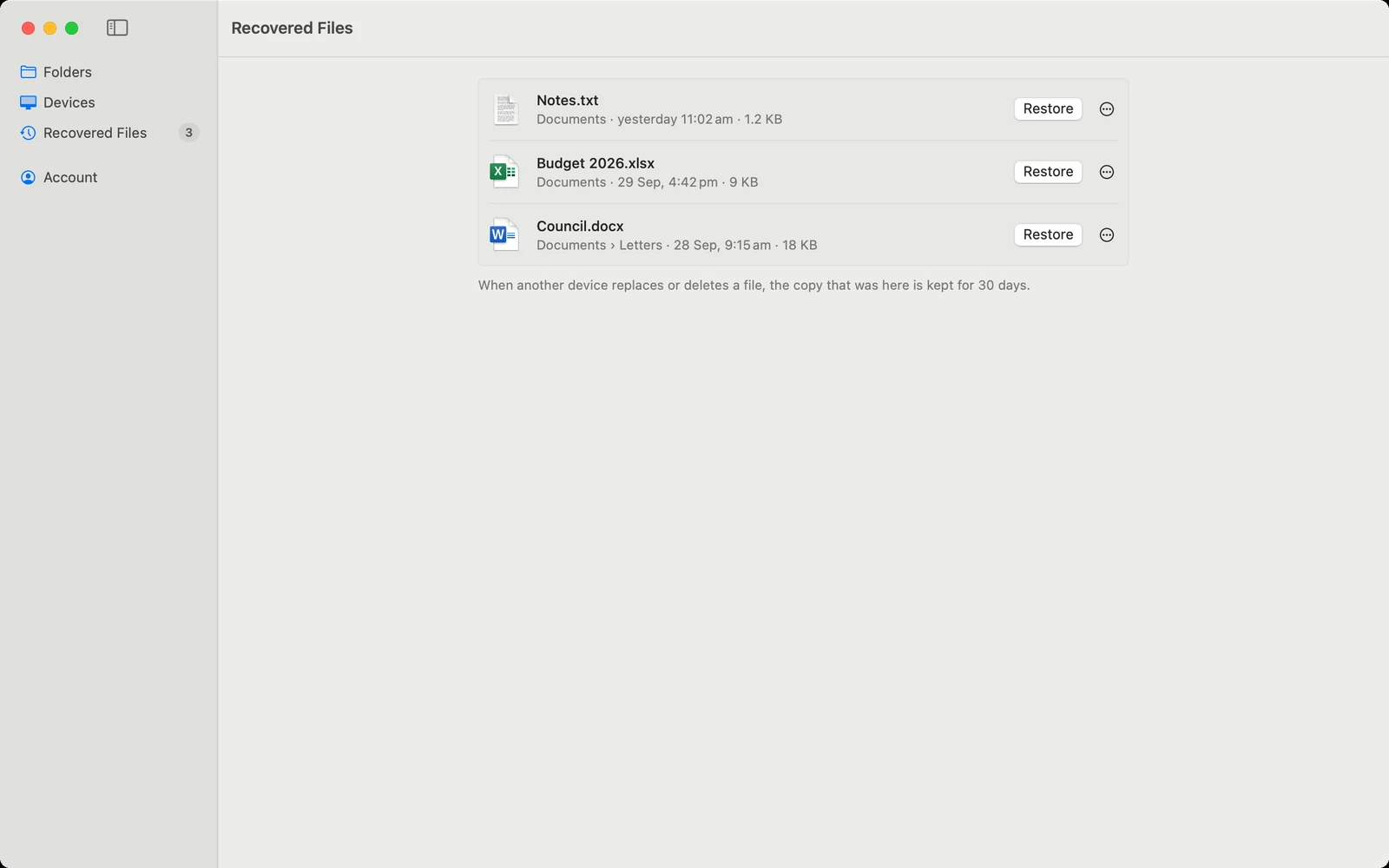
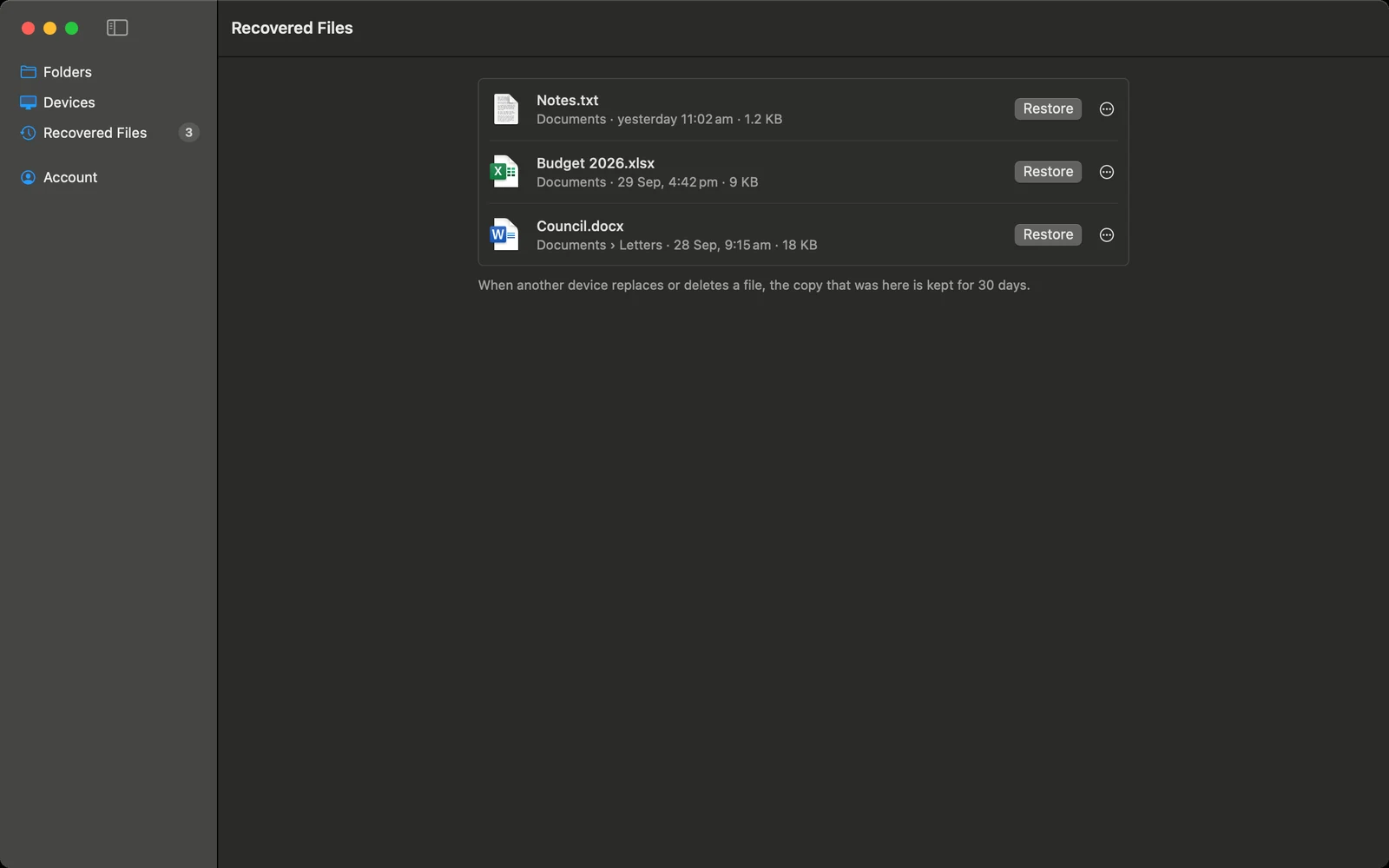
When another computer replaces or deletes a file, the copy that was here is kept for 30 days.
When two computers can’t connect directly, another of yours relays the files.
In the notification area on Windows, the menu bar on a Mac, and with its window closed on Linux. It can start when you sign in.
Install it on each computer, phone and tablet, and sign in with the same account.
curl -fsSL https://echofiles.app/install.sh | sh Download for AndroidAlso Windows, Mac and Linux. All downloadsInternet sync US$19.99, once · Other systems and versions
Questions? See Help, or contact support.